 ClassMori
Online classroom job chart
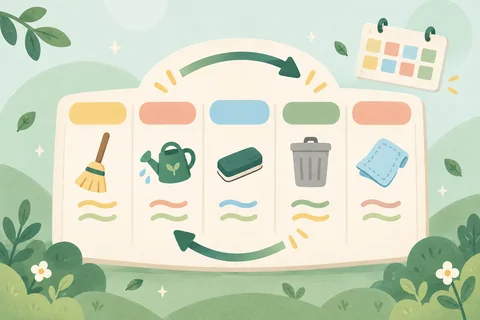
List your classroom jobs and rotate by individual students or groups. See at a glance who has each job today and who's up next—rotating automatically every day or week.
- Free
- No login or sign-up
- Full-screen projector view
What you enter stays in this browser only; it is gone if you switch computers or clear browsing data. After you sign up, your class list, scores and pets link together, which works even better. Sign up free
How it works
List your classroom jobs
Defaults like line leader, board eraser, and recycling can be renamed, added, or deleted (up to 12). Each job can take multiple students—for example, 2 for recycling.
Choose how it rotates
"By student" takes the next batch of students each time, so nobody repeats until everyone has had a turn. "By group" moves every group to the next job.
See today and this week
Today's helpers are shown in large text, with the upcoming schedule below ready to print for your classroom wall. To skip this turn, click "Next batch".
FAQ
How are weekends and days off handled?
Weekends aren't counted—on Saturday and Sunday you'll see the next school day's helpers, and daily rotation only counts Monday to Friday. After a weekday holiday, just click "Previous batch" to adjust.
Do I need to enter student names?
No. By default, it uses student numbers from 1 up to your class size. To show names, open "Settings", click "Use student names", and paste your class list. Names stay on this computer only.
Why do only a few students have jobs today?
Each job defaults to 1 student, rotating through the whole class. For bigger jobs like sweeping, increase the number in "Settings" (e.g. 3) to assign 3 students at once. Everyone gets a turn before anyone repeats.
What is the difference between by student and by group?
"By student" assigns students to each job for the day or week and continues with the next batch next time. "By group" assigns each group to a job and rotates the whole group to the next job next time.
Are my settings remembered?
They stay in this computer's browser, so the same job chart opens next time. They don't sync to other computers.
More free class tools
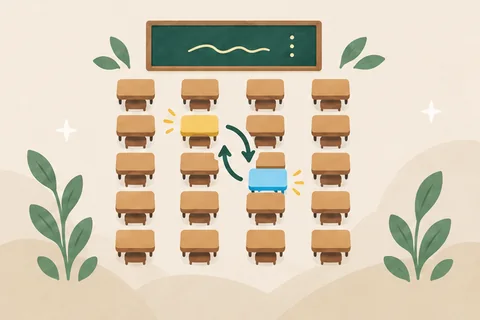 Seating chart makerA 30-seat chart is ready when you open it. Shuffle seats in one click, swap in two taps, and print.
 Certificate makerPick an award and print one for every student on Letter or A4, with the wording already written.
 Report card comment generatorTap strengths to get report card comments, parent notes, and subject comments for one student or the whole class.
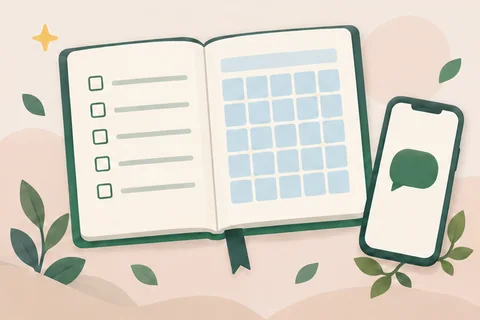 Homework boardPost today's homework and reminders on the projector for students to copy, or copy the list to message families.
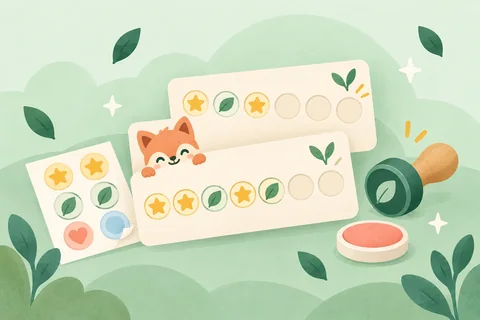 Reward punch cardsPrint a punch card for every student: choose 5–30 spots, add a reward, and fit 2–10 cards per page.
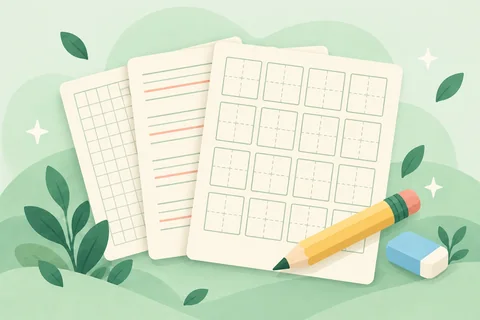 Handwriting paperPrimary handwriting lines, lined paper, graph paper, and square grids. Pick a size and print—no watermark.
 Class grade calculatorPaste class scores for the average, median, SD, pass rate, score distribution, percentile ranks, and weighted grades.
 Date calculatorFind days between dates, add or subtract days, or check exact age and grade level by birth date. Updates as you type.
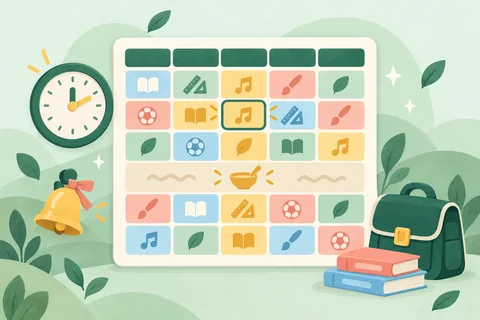 Class schedule makerBuild a weekly class schedule in a few taps. Print on Letter or A4, save as an image, or project what's next.
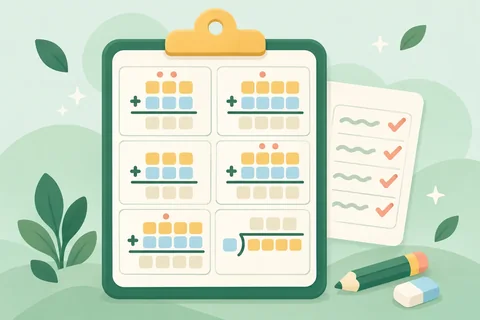 Math worksheet generatorGenerate printable vertical math worksheets for Grades 1–6 with step-by-step answer keys.
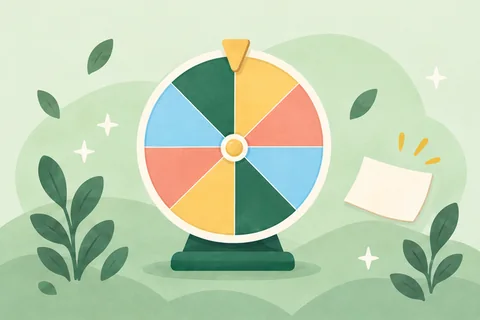 Random name pickerReady to spin with student numbers. Picked numbers are set aside, so nobody is called twice in a round.
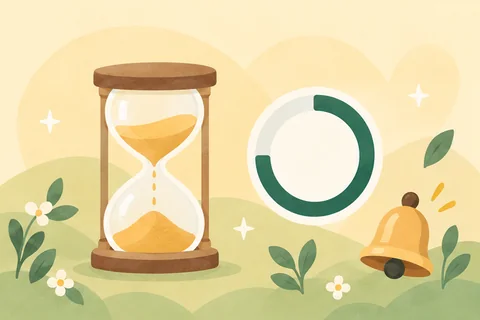 Countdown timerTap 1, 3, 5 or 10 minutes to start. Big numbers for the projector and a chime when time's up.
 Random groupsUses student numbers by default: pick how many groups and split the class evenly in one tap. Names work too.
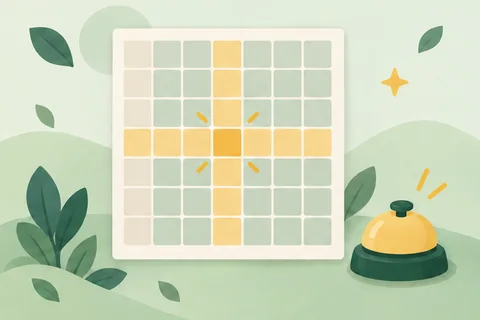 Times tablesWhole-class multiplication quiz for the projector, a printable 12 × 12 chart, and solo practice.Times tablesWhole-class multiplication quiz for the projector, a printable 12 × 12 chart, and solo practice.
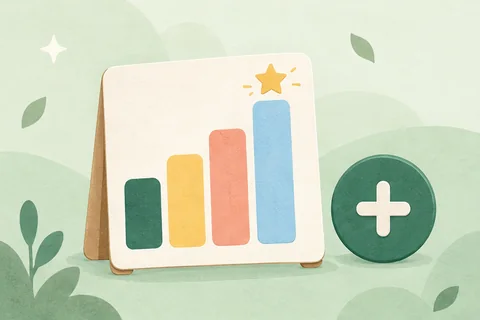 ScoreboardAdd team points in one tap with big numbers for the projector. Undo mistakes anytime; no point deductions.
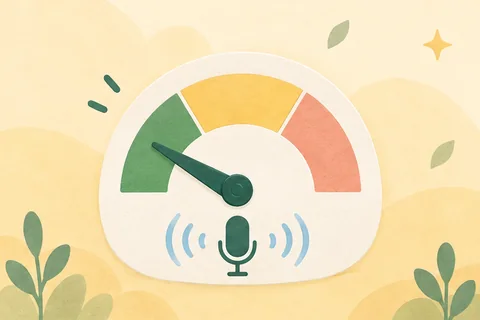 Classroom noise meterLive classroom noise level meter with your mic. Mori covers its ears when it's too loud, plus a quiet challenge.Quiet challenge (Animals)NEW NewThe quieter the class stays, the more animals come out; if it gets too loud, they run away. Fullscreen, mic or manual mode.
 Countdown to a dateHow many days until a big test, graduation, or school break? Big numbers for the projector, updated every day.
 Charades generator486 kid-friendly words in 10 categories. Cards stay hidden until the performer peeks, with a timer and team scores.
 Guess the numberThe computer hides a number from 1 to 100. Students take turns guessing higher or lower as the range shrinks.
 Bulls and cows (1A2B)The computer picks a secret 4-digit code with no repeats. The class uses bulls (A) and cows (B) clues to crack it.
 Mental mathAddition and subtraction within 10 to 1,000, times tables and division, one big question at a time, with team races.
 Tic-tac-toePlay classic two-player mode right away, or have two teams answer a question before claiming a square. 3×3 or 4×4.
 Random number generatorStarts at 1–30 with no repeats—ready for student numbers. Set any range, draw up to 20 at once, or skip absent kids.
 Dice & coinUp to three big dice with 6, 10 or 20 sides, and a coin whose two sides you can name. Projector-ready, no login.
 Classroom pollAsk a question with 2–6 options, tap to tally raised hands, and show a live bar chart. Projector-ready, no login.
 Attendance trackerMark all present in one tap on a seat grid, tap seats for absent, late, or excused, and copy the absentee list.
 StopwatchOne tap to start, with a big projector view and lap splits marking fastest and slowest. Stays saved if you refresh.
 Online clockFull-screen analog and digital classroom clock with the date, plus an interactive teaching clock with movable hands.
 Random order generatorPut the whole class in a fair random order in one click, then step through who's up next on the projector.
 School bellRing a school bell with one tap, or list your bell times and it rings on schedule while the page is open.
 Interactive hundreds chartA big 1–100 chart to project: color squares, highlight skip counting and hide numbers for a guessing game.
 Bingo card generatorPrint a unique bingo card for each student from your word or question list, with a no-repeat caller and card checker.
 Schulte tableTap 1, 2, 3… in order on a shuffled 3×3 to 6×6 grid. Includes a timer, best times, and a class challenge leaderboard.
 Tower of Hanoi3 to 7 disks—drag or tap to move. Tracks moves against the minimum possible, with undo, hints, and a team race.
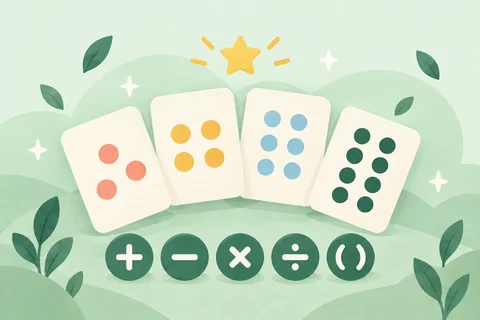 24 gamePlay the 24 math game in class: four number cards that always make 24, instant checking, three levels, and team turns.
 ProtractorBig protractor for the projector: drag either side to measure, see the matching scale light up, and quiz the class.
 MetronomeA big-screen metronome (40–208 BPM, 2/4 to 6/8) with tap tempo and a beat light the whole class can follow.
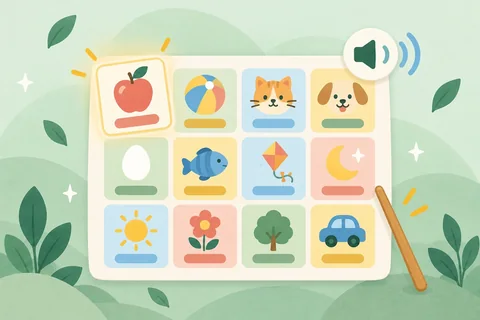 Talking alphabet chartTap A–Z in uppercase or lowercase to hear each letter name and word with a picture, or play a listening game.
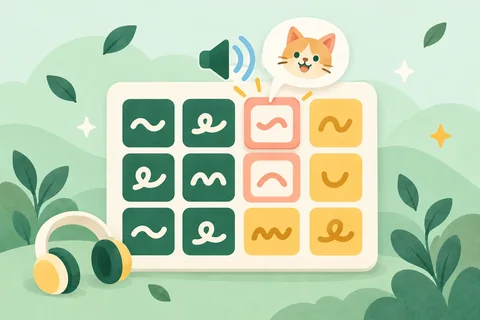 American English phonetic chartAll 41 American English sounds (KK & IPA symbols) with spoken example words and a listen-and-pick classroom quiz.
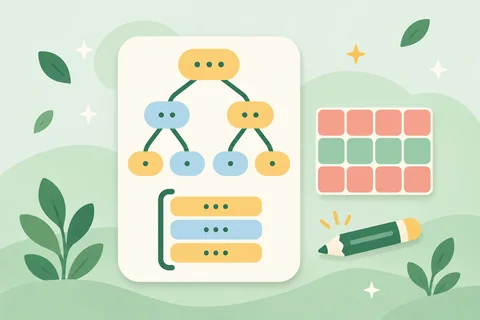 Factor calculatorFind factors, multiples, and prime factorization, or get the GCF and LCM step by step with the ladder method.
 Fraction calculatorAdd, subtract, multiply, and divide fractions and mixed numbers step by step. Simplify, compare, and print worksheets.English classroom games21 projectable English games for vocabulary, listening, sentences and team quizzes.
 Area calculatorCalculate the area of 8 shapes with step-by-step work, a formula chart, unit conversions, and printable worksheets.
 Volume calculatorFind volume and surface area for prisms, cubes, cylinders, and spheres with steps, L/mL conversions, and worksheets.Acorn Estimation JarNEW NewEstimate how many acorns fill the jar, reveal 4 math clues to narrow the range, and count them in rows of 10.Mystery Acorn ChestsNEW NewAnswer a question to pick a numbered chest, then decide to keep it or gift it to another team before opening.Forest Connect Four QuizNEW NewDrop tokens in a 7×6 Connect Four grid using your own oral questions or built-in K–6 mental math.
 Coordinate Memory PairsNEW NewCall out A1–D5 grid coordinates from seats to flip and match icons, mental math, world flags, or custom word pairs.Solar System & Gravity JumpNEW NewExplore planetary orbits, compare true planet sizes side by side, and test gravity jumps from the Moon to Jupiter.Forest Melody GridNEW NewCompose melodies and percussion beats on a 16-step pentatonic grid, or play a team ear-training replay game.Fraction Pizza WorkshopNEW NewSlice pizzas into 2–12 parts, add toppings, stack two pans to prove equivalent fractions, or race on party orders.Forest Pan BalanceNEW NewPlace weights and mystery fruits on a swinging wooden scale, model equality steps, and guess unknown weights.Morning Reading Orchard MeterNEW NewRead aloud into the mic to grow blossoms and ripe fruit, or switch to Quiet Nest mode for silent study.Forest Trail Board QuestNEW NewRoll the wooden die along a 24-tile forest trail for 2–6 teams, with Vine Shortcuts, Beehives, and quiz tiles.Rekenrek Number RackNEW NewSlide 5-and-5 red-and-white beads on 20-bead or 100-bead racks, with a hide curtain and subitizing flash mode.Forest Play-Money RegisterNEW NewCount coins and bills across 9 world currencies to pay exact amounts, make change, and race as team cashiers.Forest Whack-a-Mole DuelNEW NewTap target moles in split-screen 1v1 duels or team relays across multiples, primes, parts of speech, or custom lists.Leaf-Blind Picture RevealNEW NewHide an illustration or your own classroom photo behind numbered wooden tiles and reveal one tile per right answer.Interactive 3D World GlobeNEW NewSpin an offline 3D globe with day/night sunlight, latitude-longitude lines, continents, oceans, and team country hunts.World Flags & Capitals QuizNEW NewQuiz 60 crisp vector flags and capitals by continent—identify the country, pick the right flag, or match capitals.Forest Tangram StudioNEW NewDrag, rotate 45°, and flip 7 wooden tans across 14 forest silhouettes, switching between K–2 guides and pure outlines.Phonics Sound-Box TilesNEW NewBuild words with color-coded consonant, vowel, digraph, and magic-e tiles, sound buttons, blending slider, and 45 cards.
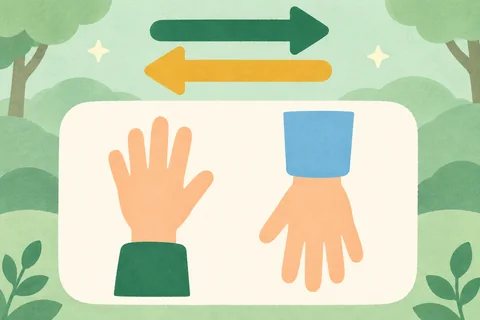 Reverse CommandFollow the action prompts—and do the opposite when the reverse symbol appears! Run 1 practice round, then 4 team challenge rounds. Quick tap-to-score for teachers, no sign-in needed.Timed Memory RebuildMemorize 6 to 12 shapes, then recreate them in order as a team after they're hidden, scored position by position over three rounds. Project the shapes and answer on paper—no sign-in.
 Team Relay ChallengePass a card around the team circle—warm up first, then race to hit your lap goal. Big buttons for logging laps, easy to host on a phone, no sign-in needed.