 ClassMori
Times tables and multiplication table for primary maths
Practise times tables on the classroom projector with no sign-in. In under a minute, switch to “Up to 10”, pick only the 6, 7, 8 and 9 tables for Primary 3, tap “Projector” and step through questions with your clicker.
- Free
- No login or sign-up
- Full-screen projector view
Question settings2–12 times tables · Standard · No timer · No teams
Question 1 of 132 this round
Question 1: What is 6 times 10?
You can also press the space bar: once for the answer, again for the next question.
Tap a table’s name (like “7 times table”) to highlight it. Tap again to clear.
- 1 × 1 =1
- 1 × 2 =2
- 1 × 3 =3
- 1 × 4 =4
- 1 × 5 =5
- 1 × 6 =6
- 1 × 7 =7
- 1 × 8 =8
- 1 × 9 =9
- 1 × 10 =10
- 1 × 11 =11
- 1 × 12 =12
- 2 × 1 =2
- 2 × 2 =4
- 2 × 3 =6
- 2 × 4 =8
- 2 × 5 =10
- 2 × 6 =12
- 2 × 7 =14
- 2 × 8 =16
- 2 × 9 =18
- 2 × 10 =20
- 2 × 11 =22
- 2 × 12 =24
- 3 × 1 =3
- 3 × 2 =6
- 3 × 3 =9
- 3 × 4 =12
- 3 × 5 =15
- 3 × 6 =18
- 3 × 7 =21
- 3 × 8 =24
- 3 × 9 =27
- 3 × 10 =30
- 3 × 11 =33
- 3 × 12 =36
- 4 × 1 =4
- 4 × 2 =8
- 4 × 3 =12
- 4 × 4 =16
- 4 × 5 =20
- 4 × 6 =24
- 4 × 7 =28
- 4 × 8 =32
- 4 × 9 =36
- 4 × 10 =40
- 4 × 11 =44
- 4 × 12 =48
- 5 × 1 =5
- 5 × 2 =10
- 5 × 3 =15
- 5 × 4 =20
- 5 × 5 =25
- 5 × 6 =30
- 5 × 7 =35
- 5 × 8 =40
- 5 × 9 =45
- 5 × 10 =50
- 5 × 11 =55
- 5 × 12 =60
- 6 × 1 =6
- 6 × 2 =12
- 6 × 3 =18
- 6 × 4 =24
- 6 × 5 =30
- 6 × 6 =36
- 6 × 7 =42
- 6 × 8 =48
- 6 × 9 =54
- 6 × 10 =60
- 6 × 11 =66
- 6 × 12 =72
- 7 × 1 =7
- 7 × 2 =14
- 7 × 3 =21
- 7 × 4 =28
- 7 × 5 =35
- 7 × 6 =42
- 7 × 7 =49
- 7 × 8 =56
- 7 × 9 =63
- 7 × 10 =70
- 7 × 11 =77
- 7 × 12 =84
- 8 × 1 =8
- 8 × 2 =16
- 8 × 3 =24
- 8 × 4 =32
- 8 × 5 =40
- 8 × 6 =48
- 8 × 7 =56
- 8 × 8 =64
- 8 × 9 =72
- 8 × 10 =80
- 8 × 11 =88
- 8 × 12 =96
- 9 × 1 =9
- 9 × 2 =18
- 9 × 3 =27
- 9 × 4 =36
- 9 × 5 =45
- 9 × 6 =54
- 9 × 7 =63
- 9 × 8 =72
- 9 × 9 =81
- 9 × 10 =90
- 9 × 11 =99
- 9 × 12 =108
- 10 × 1 =10
- 10 × 2 =20
- 10 × 3 =30
- 10 × 4 =40
- 10 × 5 =50
- 10 × 6 =60
- 10 × 7 =70
- 10 × 8 =80
- 10 × 9 =90
- 10 × 10 =100
- 10 × 11 =110
- 10 × 12 =120
- 11 × 1 =11
- 11 × 2 =22
- 11 × 3 =33
- 11 × 4 =44
- 11 × 5 =55
- 11 × 6 =66
- 11 × 7 =77
- 11 × 8 =88
- 11 × 9 =99
- 11 × 10 =110
- 11 × 11 =121
- 11 × 12 =132
- 12 × 1 =12
- 12 × 2 =24
- 12 × 3 =36
- 12 × 4 =48
- 12 × 5 =60
- 12 × 6 =72
- 12 × 7 =84
- 12 × 8 =96
- 12 × 9 =108
- 12 × 10 =120
- 12 × 11 =132
- 12 × 12 =144
Question settings2–12 times tables · 10 questions · Standard · Number pad

10 questions from the 2–12 times tables
See the score and missed facts right away. No sign-in, and scores are never saved.
Printable multiplication table
Pick a style and press "Print" to get one page. The blank sheets work as homework or a quick quiz. You can also cover some answers in the tool above and print that.
- Triangle chartA triangle chart: each fact appears only once.
- ListFacts in order, from the 1 times table to the 12 times table.
- GridThe classic row-and-column grid, quickest for looking up an answer.
- Blank practice sheetThe list with the answers left blank, plus a line for name, class and date.
- Blank gridAn empty grid for students to fill in themselves.
Multiplication table (12 × 12)
| × | 1 | 2 | 3 | 4 | 5 | 6 | 7 | 8 | 9 | 10 | 11 | 12 |
|---|---|---|---|---|---|---|---|---|---|---|---|---|
| 1 | 1 | 2 | 3 | 4 | 5 | 6 | 7 | 8 | 9 | 10 | 11 | 12 |
| 2 | 2 | 4 | 6 | 8 | 10 | 12 | 14 | 16 | 18 | 20 | 22 | 24 |
| 3 | 3 | 6 | 9 | 12 | 15 | 18 | 21 | 24 | 27 | 30 | 33 | 36 |
| 4 | 4 | 8 | 12 | 16 | 20 | 24 | 28 | 32 | 36 | 40 | 44 | 48 |
| 5 | 5 | 10 | 15 | 20 | 25 | 30 | 35 | 40 | 45 | 50 | 55 | 60 |
| 6 | 6 | 12 | 18 | 24 | 30 | 36 | 42 | 48 | 54 | 60 | 66 | 72 |
| 7 | 7 | 14 | 21 | 28 | 35 | 42 | 49 | 56 | 63 | 70 | 77 | 84 |
| 8 | 8 | 16 | 24 | 32 | 40 | 48 | 56 | 64 | 72 | 80 | 88 | 96 |
| 9 | 9 | 18 | 27 | 36 | 45 | 54 | 63 | 72 | 81 | 90 | 99 | 108 |
| 10 | 10 | 20 | 30 | 40 | 50 | 60 | 70 | 80 | 90 | 100 | 110 | 120 |
| 11 | 11 | 22 | 33 | 44 | 55 | 66 | 77 | 88 | 99 | 110 | 121 | 132 |
| 12 | 12 | 24 | 36 | 48 | 60 | 72 | 84 | 96 | 108 | 120 | 132 | 144 |
How it works
Set your tables and run “Class quiz”
Pick “Up to 10”, tick tables like 2, 5 and 10 for P2, and choose “Standard”, “Missing factor” or “Mixed”. Use space bar or a clicker for “Show answer” and “Next”, or add a timer and “Team points”.
Show or print an A4 times table chart
Switch to “Multiplication table” for “Triangle chart”, “List” or “Grid”. On the triangle, colour multiples or hide 10 facts at random. “Print” fits one A4 page with blanks and Name, Class and Date.
Use “Solo practice” on school iPads
Students choose 10 or 20 questions on school iPads or laptops and answer by number pad or multiple choice. They see their score and time, then retry missed facts. No names or logins needed.
FAQ
Can I set the range up to 10 and pick only the tables my P2 or P3 class knows?
Yes. Switch the range to “Up to 10” so 11 and 12 do not come up, or use “Up to 12” for the 12 times table. In Primary 2, students learn the 2, 5 and 10 tables, and in Primary 3 they learn the 6, 7, 8 and 9 tables, so you can tick just the 7 times table, 8 times table or any mix you have taught.
Can I use this for quick times table games with teams in class?
Yes. In “Class quiz”, turn on “Team points” for 2, 3 or 4 groups and tap +1 when a team answers, with “Undo last point” if you misclick. You can add a 5, 10, 15 or 20 second timer per question, and questions do not repeat within a round. Tap “Projector” so pupils at the back can read the board clearly.
Will the times table chart print cleanly on one A4 page for class practice?
Yes. Choose a 10 × 10 or 12 × 12 “Grid”, “List” or “Triangle chart”. On screen, “Read facts aloud” reads tapped facts in the browser voice. Use “Hide answers”, or hide 10 facts at random on the triangle, then press “Print” for one A4 page with blanks and a Name, Class and Date line.
Is this part of SLS, and does “Solo practice” save student names or scores?
No. It is a separate website, not part of Student Learning Space (SLS). Pupils open it on school iPads or laptops with no login or names needed. Nothing about students is saved or uploaded, so if you want scores for your mark sheet, have pupils show you their screen when they finish.
More free class tools
 Charades generator486 child-friendly words in 10 categories. Cards stay hidden until the performer peeks, with a timer and team scores.
 Guess the numberThe computer hides a number from 1 to 100. Students take turns guessing higher or lower as the range shrinks.
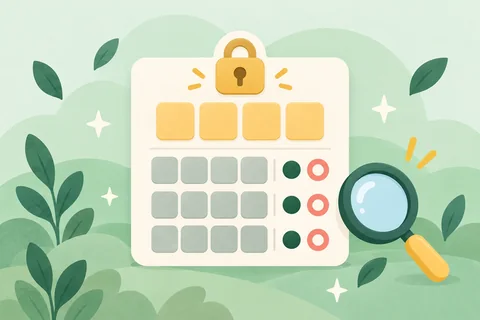 Bulls and cows (1A2B)The computer picks a secret 4-digit code with no repeats. The class uses bulls (A) and cows (B) clues to crack it.
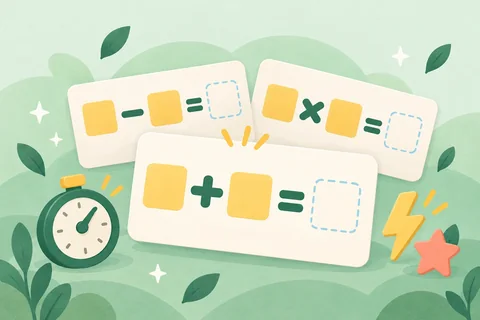 Mental mathsAddition and subtraction within 10 to 1,000, times tables and division, one big question at a time, with team races.
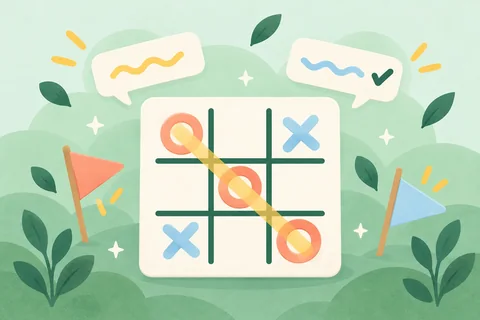 Tic-tac-toePlay classic two-player mode right away, or have two teams answer a question before claiming a square. 3×3 or 4×4.
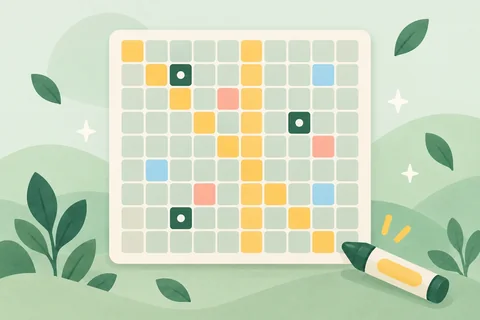 Interactive number chartA big 1–100 chart to project: colour squares, highlight skip counting and hide numbers for a guessing game.
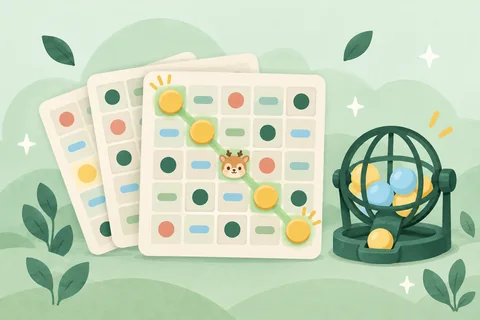 Bingo card generatorPrint a unique bingo card for each student from your word or question list, with a no-repeat caller and card checker.
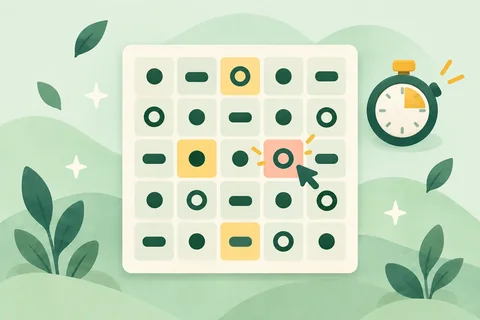 Schulte tableTap 1, 2, 3… in order on a shuffled 3×3 to 6×6 grid. Includes a timer, best times, and a class challenge leaderboard.
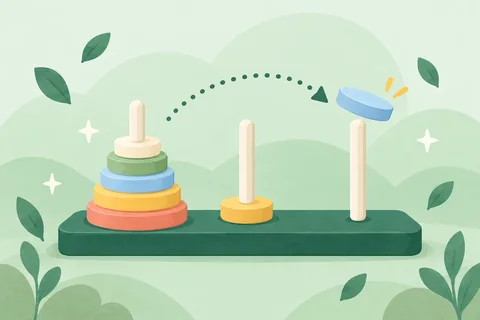 Tower of Hanoi3 to 7 disks—drag or tap to move. Tracks moves against the minimum possible, with undo, hints, and a team race.
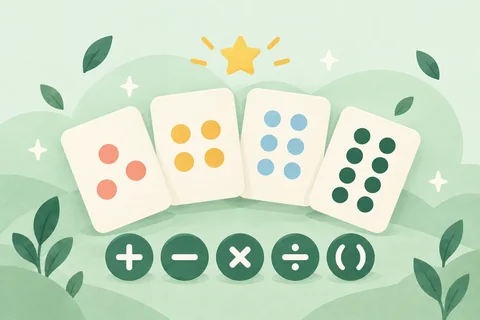 24 gamePlay the 24 maths game in class: four number cards that always make 24, instant checking, three levels, and team turns.
 ProtractorBig protractor for the projector: drag either side to measure, see the matching scale light up, and quiz the class.
 MetronomeA big-screen metronome (40–208 BPM, 2/4 to 6/8) with tap tempo and a beat light the whole class can follow.
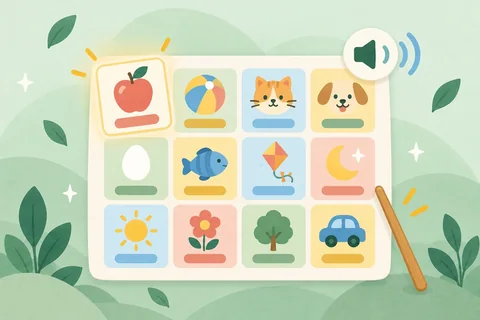 Talking alphabet chartTap A–Z in uppercase or lowercase to hear each letter name and word with a picture, or play a listening game.
 American English phonetic chartAll 41 American English sounds (KK & IPA symbols) with spoken example words and a listen-and-pick classroom quiz.
 Factor calculatorFind factors, multiples, and prime factorization, or get the GCF and LCM step by step with the ladder method.
 Fraction calculatorAdd, subtract, multiply, and divide fractions and mixed numbers step by step. Simplify, compare, and print worksheets.English classroom games21 projectable English games for vocabulary, listening, sentences and team quizzes.
 Area calculatorCalculate the area of 8 shapes with step-by-step work, a formula chart, unit conversions, and printable worksheets.
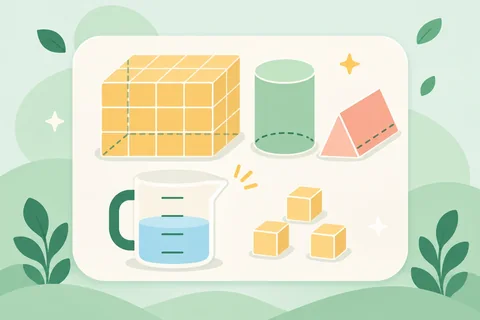 Volume calculatorFind volume and surface area for prisms, cubes, cylinders, and spheres with steps, L/mL conversions, and worksheets.Acorn Estimation JarNEW NewEstimate how many acorns fill the jar, reveal 4 maths clues to narrow the range, and count them in rows of 10.Mystery Acorn ChestsNEW NewAnswer a question to pick a numbered chest, then decide to keep it or gift it to another team before opening.Forest Connect Four QuizNEW NewDrop tokens in a 7×6 Connect Four grid using your own oral questions or built-in K–6 mental maths.
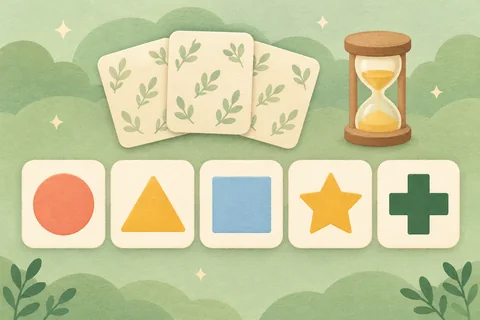 Coordinate Memory PairsNEW NewCall out A1–D5 grid coordinates from seats to flip and match icons, mental maths, world flags, or custom word pairs.Solar System & Gravity JumpNEW NewExplore planetary orbits, compare true planet sizes side by side, and test gravity jumps from the Moon to Jupiter.Forest Melody GridNEW NewCompose melodies and percussion beats on a 16-step pentatonic grid, or play a team ear-training replay game.Fraction Pizza WorkshopNEW NewSlice pizzas into 2–12 parts, add toppings, stack two pans to prove equivalent fractions, or race on party orders.Forest Pan BalanceNEW NewPlace weights and mystery fruits on a swinging wooden scale, model equality steps, and guess unknown weights.
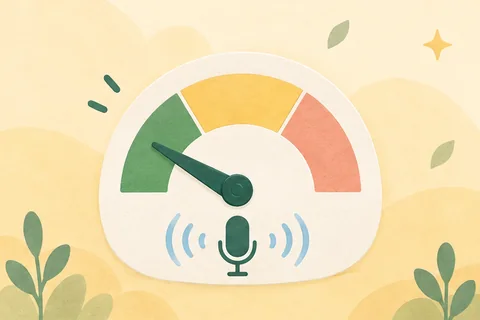 Morning Reading Orchard MeterNEW NewRead aloud into the mic to grow blossoms and ripe fruit, or switch to Quiet Nest mode for silent study.
 Forest Trail Board QuestNEW NewRoll the wooden die along a 24-tile forest trail for 2–6 teams, with Vine Shortcuts, Beehives, and quiz tiles.Rekenrek Number RackNEW NewSlide 5-and-5 red-and-white beads on 20-bead or 100-bead racks, with a hide curtain and subitizing flash mode.
 Forest Play-Money RegisterNEW NewCount coins and bills across 9 world currencies to pay exact amounts, make change, and race as team cashiers.Forest Whack-a-Mole DuelNEW NewTap target moles in split-screen 1v1 duels or team relays across multiples, primes, parts of speech, or custom lists.Leaf-Blind Picture RevealNEW NewHide an illustration or your own classroom photo behind numbered wooden tiles and reveal one tile per right answer.Interactive 3D World GlobeNEW NewSpin an offline 3D globe with day/night sunlight, latitude-longitude lines, continents, oceans, and team country hunts.World Flags & Capitals QuizNEW NewQuiz 60 crisp vector flags and capitals by continent—identify the country, pick the right flag, or match capitals.Forest Tangram StudioNEW NewDrag, rotate 45°, and flip 7 wooden tans across 14 forest silhouettes, switching between K–2 guides and pure outlines.Phonics Sound-Box TilesNEW NewBuild words with colour-coded consonant, vowel, digraph, and magic-e tiles, sound buttons, blending slider, and 45 cards.
 Reverse CommandFollow the action prompts—and do the opposite when the reverse symbol appears! Run 1 practice round, then 4 team challenge rounds. Quick tap-to-score for teachers, no sign-in needed.Timed Memory RebuildMemorize 6 to 12 shapes, then recreate them in order as a team after they're hidden, scored position by position over three rounds. Project the shapes and answer on paper—no sign-in.
 Team Relay ChallengePass a card around the team circle—warm up first, then race to hit your lap goal. Big buttons for logging laps, easy to host on a phone, no sign-in needed.
 Random name pickerReady to spin with index numbers. Picked numbers are set aside, so nobody is called twice in a round.
 Countdown timerTap 1, 3, 5 or 10 minutes to start. Big numbers for the projector and a chime when time's up.
 Random groupsUses index numbers by default: pick how many groups and split the class evenly in one tap. Names work too.
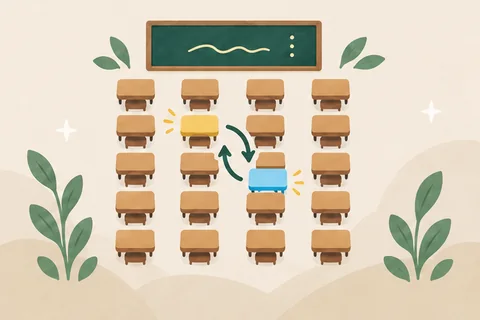 Seating plan makerA 30-seat chart is ready when you open it. Shuffle seats in one click, swap in two taps, and print.
 ScoreboardAdd team points in one tap with big numbers for the projector. Undo mistakes anytime; no point deductions.
 Certificate makerPick an award and print one for every student on Letter or A4, with the wording already written.
 Report book comment generatorTap strengths to get report book comments, parent notes, and subject comments for one student or the whole class.
 Homework boardPost today's homework and reminders on the projector for students to copy, or copy the list to message families.Classroom noise meterLive classroom noise level meter with your mic. Mori covers its ears when it's too loud, plus a quiet challenge.
 Countdown to a dateHow many days until a big test, graduation, or school break? Big numbers for the projector, updated every day.Reward reward cardsPrint a reward card for every student: choose 5–30 spots, add a reward, and fit 2–10 cards per page.
 Handwriting paperPrimary handwriting lines, lined paper, graph paper, and square grids. Pick a size and print—no watermark.
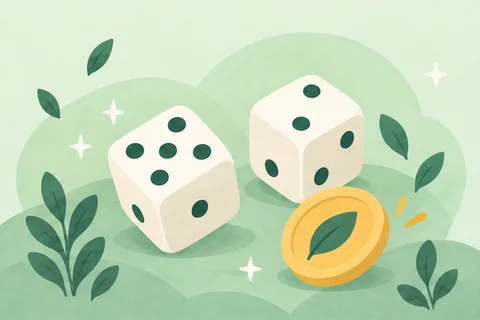
 Random number generatorStarts at 1–30 with no repeats—ready for index numbers. Set any range, draw up to 20 at once, or skip absent children.Dice & coinUp to three big dice with 6, 10 or 20 sides, and a coin whose two sides you can name. Projector-ready, no login.
 Classroom pollAsk a question with 2–6 options, tap to tally raised hands, and show a live bar chart. Projector-ready, no login.
 Attendance trackerMark all present in one tap on a seat grid, tap seats for absent, late, or excused, and copy the absentee list.
 StopwatchOne tap to start, with a big projector view and lap splits marking fastest and slowest. Stays saved if you refresh.
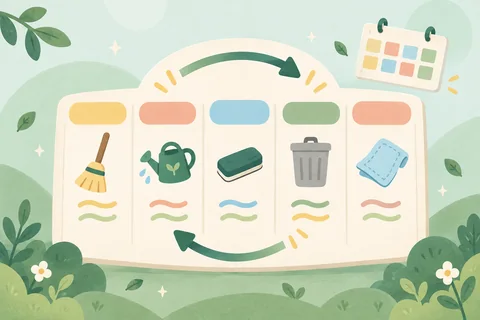 Class duty rosterList classroom jobs, set spots per job, add your class list, and see who has each job today and this week. Printable.
 Online clockFull-screen analogue and digital classroom clock with the date, plus an interactive teaching clock with movable hands.
 Random order generatorPut the whole class in a fair random order in one click, then step through who's up next on the projector.
 School bellRing a school bell with one tap, or list your bell times and it rings on schedule while the page is open.
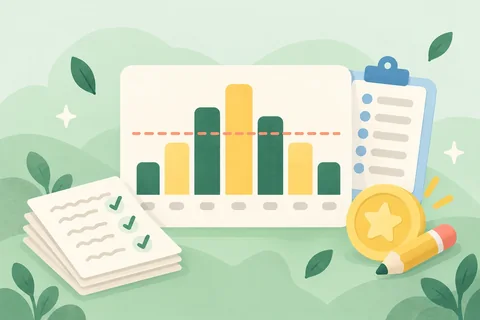 Class grade calculatorPaste class scores for the average, median, SD, pass rate, score distribution, percentile ranks, and weighted grades.
 Date calculatorFind days between dates, add or subtract days, or check exact age and school level by birth date. Updates as you type.
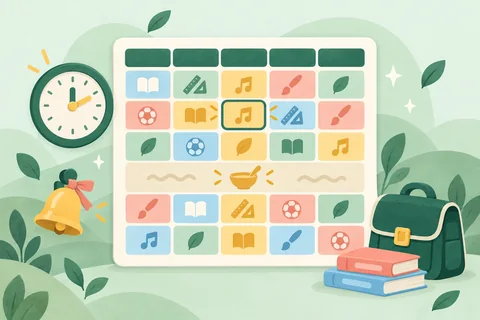 Class schedule makerBuild a weekly class schedule in a few taps. Print on Letter or A4, save as an image, or project what's next.
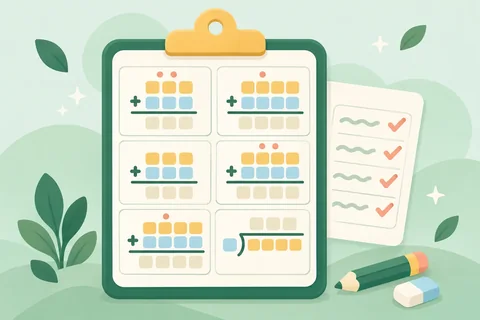 Maths worksheet generatorGenerate printable vertical maths worksheets for P1 to P6 with step-by-step answer keys.